Elementor just launched our official MCP. It lets you connect the AI tool you already use, like Claude or ChatGPT, to your WordPress site and have it build and manage Elementor pages for you. The community response has been great, and it’s also brought up a lot of questions: what an MCP is, why it matters, and what it has to do with Elementor and WordPress. Let’s get into that.
MCP is a terrible name that just means “connector”
New technologies often get the worst names. It seems like the engineers who build them are also the ones who name them 😂. MCPs are a great example: nothing rolls off the tongue quite like Model Context Protocol, and the short form isn’t much better.
Behind the unintuitive name is something simple and useful: an MCP is a standard way to connect the AI model or agent you use (Claude, ChatGPT, and others) to your other tools, like Gmail, Notion, or Slack. Once it’s connected, your AI can take real action in those tools for you – for example, it can pull a thread from your inbox, update a Notion page, or, with the Elementor MCP, build a page on your website. You can automate work you used to do by hand, and do things you couldn’t do on your own before.
AI in WordPress has been finding its footing
Because WordPress is open source, the ecosystem tends to rally quickly around new needs. That’s why there’s a plugin for almost everything, from SEO to performance to security to page building (ahem). The same thing has been happening with AI, especially since WordPress 7.0 added AI infrastructure to core. Even so, it’s been hard for WordPress users to get AI workflows that are intuitive and useful. The core implementation only goes so far, and the flood of third-party AI products can lead to analysis paralysis.
That’s why we’re really and truly excited (not just LinkedIn “excited”) to bring the official Elementor MCP to the world. With it, you can guide your AI tool to build Elementor pages and sites, manage and maintain them, and more. Website creators used to be limited by their technical skills, but with an agent connected to their WordPress site, they can build whatever they have in mind.
What it looks like in practice
For our webinar, I used our MCP to completely build a website for a fictitious (yet charming-sounding) spice company called Nine Spice Co. I told Claude exactly what I wanted: an online WooCommerce store, with recipes that connect to the products, a blog and more, and Claude quickly built out the homepage, set up the global colors and fonts, and even made smart decisions about the content architecture, like the use of custom fields, and cross-connected post types.

What you get with the official Elementor MCP
- It’s free. The MCP works with the free version of Elementor at no extra cost. You pay only for your AI tool, like a Claude or ChatGPT subscription, plus an Elementor Pro license if you want the MCP to build with Pro features.
- There’s nothing extra to install. The MCP is included in the latest version of Elementor. Copy the prompt from your Elementor dashboard into your AI tool, and it handles the setup in a few minutes.
- Built by Elementor, for Elementor. I think it’s fair to say that our team knows Elementor best, and this MCP was crafted to take our promise and mission for web creators into the AI future.
- Your traffic doesn’t go through a proxy. Some MCPs route traffic through a third-party server. Ours connects your AI tool directly to your site, with nothing in between (including us).
- Angie adds more. The Elementor MCP can build full pages on its own. If you add Angie, your AI can also create and publish custom code snippets on your site and add custom functionality that doesn’t exist out of the box. It’s optional, but try it if you want to go further.
How to get started
- Install the latest version of the Elementor plugin on a site, ideally a staging or local one. If it’s already installed, make sure you’re on version 4.3 or higher.
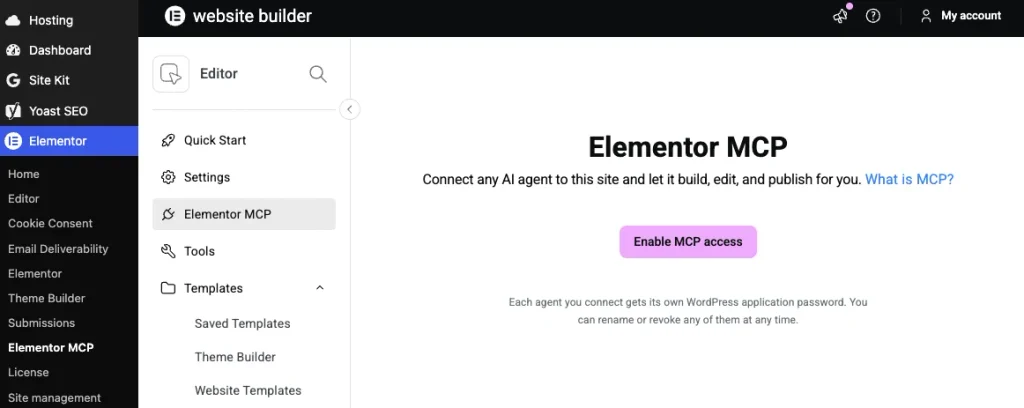
- In the WordPress admin sidebar, go to Elementor > Elementor MCP and enable the MCP.
- Choose your AI tool from the menu and copy the prompt that’s generated for you.
- Paste the prompt into your AI tool (Claude, ChatGPT, etc.) and let it set up the connection.
- Ask your AI to do something on your site, and watch your idea come to life.
See it in our demo webinar
On Thursday September 24 Roi Tal and I showed all of this in action in an online webinar. Ferdy Korpershoek joined us to share his experience with the MCP and some of what he’s built with it.